Tri-Band Radio Trap: Common Pitfalls of Multi-Radio Wi-Fi Access Points

With the arrival of Wi-Fi 7, nearly all vendors now offer access points supporting multiple 5 GHz or 6 GHz radios on a single access point. This advancement gives wireless engineers the powerful tool they’ve sought for years to tackle capacity challenges. But with great power comes great responsibility. In this post, let’s look at the new pitfalls these access points introduce and why using access points in traditional 2.4/5/6 or 5/6 mode by default makes more sense.

The Perception Trap: More capacity – fewer APs?

When engineers mention more radios per AP, management’s first question is often: “Can we use fewer access points and save money?” On paper, more active radios should mean higher capacity and better user experience. But in enterprise Wi-Fi, capacity is not where you begin—it’s coverage that matters first. Design for primary and secondary coverage (with redundancy for failures and roaming), and only then layer additional APs for capacity in high-density areas as needed. This principle should continue to be the foundation for WiFi designs. While in some environments you might reduce AP count with dual-band multi-radio APs, in others—especially non-high-density, closed rooms—coverage and desired redundancy will still determine the deployment count.

The POE Trap: Powering All Those Radios

Enabling multiple radios (dual 5 GHz or 6 GHz, for instance) often requires 802.3bt (> 30W) PoE. Running in lower power (PoE+) mode might drop radios to two streams instead of four, which still provides extra capacity but with trade-offs. More active radios mean a bigger power draw from switches, which can strain port- and chassis-level PoE budgets. Always double-check that your switches can supply the required power before enabling all radios.

The RRM Trap: Interference & Channel Planning

To enable more radios on the same band, vendors restrict radios to specific UNI-bands to avoid adjacent channel interference. For example one radio may be confined to use UNI-1 and UNI-2 and other radio to UNI-2E and UNI-3. In this case, the number of available channels for reuse becomes fewer in the environment. If every AP runs two radios in the same band, managing co-channel interference becomes difficult, and efficient channel planning may be difficult to achieve. You may end up with more co-channel contention, negating the benefits of increased AP capacity.

The Backhaul Trap: Uplink Bottlenecks

With more capacity per access point, there’s a high probability of exceeding 1 Gbps of aggregate throughput across the multiple radios. This means the wired Ethernet connection between the switch and each AP can quickly become a bottleneck, if only standard 1 Gigabit links are in use. If deploying tri-band multi-radio APs, it’s critical to ensure that the backhaul—switch ports, cabling, and AP uplinks—can support higher throughput to avoid undermining wireless performance gains. Consider upgrading to 2.5 or 5 Gigabit Ethernet options where increased capacity is required.

In summary, operating tri-band access points in single-radio on a single-band mode by default—and enabling software-defined radios for additional bands only when justified—helps address capacity constraints without falling into the common traps of backhaul bottlenecks, power limitations, RRM complexity, or misaligned coverage. This careful, needs-driven approach gets the best value from today’s powerful multi-radio hardware without introducing unnecessary risks.

Reinventing WiFi Deployment for Scale

Disclaimer

This post assumes the reader has context of my first blog in the series, Reinventing WiFi Design for Scale. If not, I strongly recommend reading it first for important context and foundational concepts. To keep things simple this post focuses on access points and ignores wireless LAN controllers.

Challenges of Deployment at Scale

WiFi deployment – the installation of access points is the second phase of wireless network implementation. At this point the designs have been completed and necessary hardware procured. At scale, often tens of thousands of access points are installed every year as part of new builds or lifecycle management. The main challenges of deployment at scale can be categorized into 1. Inventory Management 2. Installation 3. Provisioning and 4. Validation, There are different ways to address each of these challenges. The solutions provided in this blog are meant to serve as a basis for building your own framework that fits your use case.

1. Inventory Management

The cookie-cutter designs created for new builds or lifecycle replacements provide an estimate of the hardware requirements for the year. In most cases, hardware is ordered in bulk once or twice a year to take advantage of volume discounts, and all equipment is typically shipped to a central warehouse. As inventory arrives, it is critical to document all MAC addresses, serial numbers, and claim codes (if applicable for your vendor). The cookie-cutter designs specify the exact model and quantity of access points and antennas required for each site scheduled for deployment that year. Use this data to assign inventory per site and prepare shipments that align with the installation schedule. Importantly, this inventory management system should be accessible through a UI to warehouse support resources, installers, and engineering teams, ensuring smooth coordination and visibility throughout the deployment process. This could be as sample as an excel file saved in cloud or a specialized software built for inventory management purposes. Having API access to inventory management can also help engineering with provisioning step that is described later.

When it’s time to deploy, ship the site-specific inventory from the central warehouse to the individual install locations. Access points should be labeled with their designated name and number (more on this later), which can occur at the warehouse or immediately prior to installation onsite. Labeling at the site, handled by installers, is recommended—it offers flexibility if last-minute changes or swaps are necessary and helps ensure accurate placement during the install process.

Maintaining an inventory management system can often be complicated and is certainly outside the skillset of a wireless network engineer. If this is not an option, at a minimum one can create a framework in which the install teams complete an excel worksheet containing below details

  • Name
  • MAC address
  • Serial number
  • Claim codes
  • Access point model
  • Antenna model
  • Install height
  • Allocated site
  • Ship date
  • Install date
  • Switch name
  • Switch port ID
  • Patch panel name
  • Patch panel port ID

The install teams can communicate the completed document with details either through an email or any file sharing methods. The fields in this worksheet can be used for provisioning.

2. Installation

The second challenge with deployment at scale often comes from the fact that the installation can take place across different time zones and often during non business hours. Depending on the size of the team, it may not be possible to provide engineering resources available for support. The worst case scenario is installers wont have anyone to contact with questions that might arise or for validation during the install and the best case scenario is the availability of Network Operations Center (NOC) with enough skilled staff that has 24×7 coverage. In both cases, wireless engineers need to create runbooks and install guides that provides answers to the most frequently asked questions. As described under “Pilot” and “General Availability” sections in the first blog Reinventing WiFi Design for Scale , developing such effective install guides requires constant conversations with install teams during the pilot phase where the cookie cutter design is being deployed in a geographically diverse handful of sites.

Here are some details that need to be included in installation guide package to minimize the errors in the field

  • High resolution design map indicating access pointlocation and name. The design should map should contain legend that distinguishes APs of different model with/without antenna combinations.
  • Worksheet containing the fields described in the earlier section. If none of them are populated, include a guide to scan the details from the hardware and complete the worksheet.
  • Installation procedures that include mounting height, AP/antenna orientation, label requirements (if not done in warehouse), step-by-step mounting instructions with photos, cable standard specifications and length limitations, cable slack requirement and grounding requirements if applicable

The runbook package should contain

  • Patching instructions like distribution of APs across multiple switches in the same IDF
  • Cable test validation between access point and patch panel and from patch panel to the switch prior to access point mounting
  • Basic validation criteria based on LED patterns on the access point and the required troubleshooting steps

The runbooks should also include instructions on how to communicate updated worksheets for proper access point provisioning. Once installation procedures are established, the next step is provisioning.

3. Provisioning

This step often happens at the same time or just prior to installation. This is one step where wireless engineers come with different solutions depending on the level of expertise in automation. I must call out that basic scripting skills is a requirement to be a wireless network engineer at scale even if the company has resources to hire automation experts / software developers to assist the network engineering team. I will describe a couple options that can be leveraged at various levels of automation skillset.

The first one is what can a wireless network engineer do to provision at scale with only basic scripting/programming skills. This is primarily considered backend development skill. At this level wireless engineers are comfortable with writing scripts that can make API calls and handle errors appropriately. Automation through API calls is one of the big reasons why cloud vendor deployments have grown exponentially over the years. One can write a script to take the excel worksheet that the warehouse/installers complete for a site as input to the script and provision the access points. Alternate options include making this script available on a shared resource like a jump server to support staff and NOC engineers who can trigger it based on runbooks. If the inventory management system supports data ingestion through APIs, then this manual process of someone sending in an updated worksheet and someone else triggering the script is not needed. The script can be developed to run periodically and do API calls to inventory management system to get the latest updates and trigger provisioning accordingly.

The second option requires a certain level of front end UI (User Interface) development skill. In this approach, the engineer develops a UI where installers/support engineers can upload the worksheet and initiate provision with a click of a button. This will mask the backend and adds a layer of abstraction that enhances the user experience for all parties involved. In case of more automated interaction with inventory management, once can leverage the UI to provide the status updates on provisioning for each site.

The challenge, then, is developing a provisioning process based entirely on worksheet data. At a high level, most vendors require settings such as radio profiles, device profiles, SSID mappings, VLAN configurations, and radio/channel parameters—but these are not directly mapped from the worksheet. A standardized naming convention for access points allows scripts or UI tools to reliably apply the correct settings to each group.

Just like cookie cutter designs have repeatable grid patterns, access point names or numbers should contain patterns that group settings together. For example, if the deployment requires all the mentioned settings to be applied by type of AP, internal antenna APs can have an expression like “IAP” and external antenna APs “EAP.” The script could use regex matching of these access point names or numbers mapped to corresponding configuration settings. If there are external antenna APs with different gain levels, their names could include “EAP7db” or “EAP8db” to further segment these groups.

Different AP sequence numbers can be used to distinguish groups of access points—for instance, IAPs might have numbers starting with 100, and EAPs with 200, and so on. It all depends on the use case, but the key idea is leveraging the access point name or number as the central key to configuration deployment.

4. Validation

Provisioning sets the stage for validation, ensuring each site meets performance and reliability standards before completion. In addition to basic validation through LED patterns on access points, it is always a good idea to provide installers with insights into the access point status (offline vs online / provisioned vs unprovisioned etc). This can be as simple as providing restricted read access to the access point status page (if you have cloud vendor) or a simple phone call to NOC or a more complicated but effective solution of custom developed UI depending on what fits best. After confirmation on provisioning installers can connect to different SSIDs to ensure the APs are working as expected. Additionally it would be ideal to have a post deployment validation survey done a day or two after the install is completed. Giving this bake time before the survey allows for the network RRM to converge on a more or less final channel and transmit power levels. The validation survey serves few purposes

  1. Ensure the coverage is within the design guidelines/expectations
  2. Identify any installation errors like improper AP/antenna orientation or loose connection between access point and antenna
  3. Provides a snapshot of the environment right after deployment that can be used as reference in future troubleshooting scenarios
  4. Final sign off before the install vendors can move on to the next site

Surveying every site in-house is not realistic at scale. Because of this, it is essential to include post-deployment validation surveys as part of the scope of work for installation vendors. When selecting vendors, ensure they are not only capable of installing access points but also have the skills and tools to perform accurate wireless surveys. This approach maintains quality and consistency across high-volume deployments while freeing internal resources for strategic oversight.

That’s a wrap for the tips on deploying Wi-Fi at scale. In the next post, I’ll focus on managing large-scale networks effectively, including details on data collection and building custom dashboards for real-time insights and operational efficiency.

Reinventing WiFi Design for Scale

Disclaimer

This post assumes readers already understand fundamental Wi-Fi design concepts outlined in the Certified Wireless Design Professional (CWDP) curriculum. It focuses on how those concepts evolve and adapt to large-scale deployments.

Challenges of Design at Scale

WiFi design—the placement of access points—is the foundation for delivering a reliable network experience. To build an effective design, one must understand network requirements, device counts, throughput needs, building materials, and physical and virtual constraints on hardware installation. Site surveys and stakeholder meetings provide important details used in wireless design tools.

These fundamentals remain the same regardless of scale. The primary challenge at large scale is managing hundreds of sites, often spread worldwide, making it impractical to survey every site or meet all stakeholders directly. These sites often include retail stores, distribution centers, and remote offices, each with unique constraints that shape the design.

The key to tackling scale is not to focus on the differences between sites, but to take a counterintuitive approach and find the similarities across them. Any company that has successfully scaled did not do so by treating every building or site as unique. Instead, creating standard templates lies at the heart of business expansions.

While there may be multiple templates, hundreds of sites can ultimately be grouped into just a few categories. These templates might be based on factors such as the size of the location, the nature of the business conducted there, or other criteria specific to the organization. Regardless of the basis, templates always exist.

The first task is to identify how many “types” of sites there are instead of counting “how many” individual sites. After establishing these categories, the next step is to hold stakeholder meetings focused on understanding the key requirements for each site type.

Site surveys should be performed on at least one location of each site type to analyze floor layouts, building materials, areas of high user density, critical business application zones, and other relevant factors. This approach enables the creation of scalable designs that address the needs of multiple sites efficiently.

Cookie cutter designs often receive criticism for being either over-engineered or under-engineered, both of which can result in suboptimal network performance. However, the key to making things work at scale is to build the most efficient cookie cutter designs. The goal should be to develop standardized a.k.a cookie cutter designs that balance efficiency, cost, and performance—designs that can be consistently deployed across many sites without compromising the user experience.

Easier said than done isn’t it?

Creating Optimal Cookie Cutter Wireless Designs That Work

The best approach to creating Wi-Fi designs for large-scale deployments can be attributed to a quote from Abraham Lincoln:
“If I had six hours to chop down a tree, I’d spend the first four sharpening the axe.” You’ll understand why by the end of this blog.

Start by analyzing floor plans and identifying key work streams with unique connectivity requirements. This means assessing user density, client device counts and types, the nature of the applications in use, and identifying the stakeholders who can provide critical information. All of this groundwork should be done before setting foot on-site for a survey walkthrough. Arriving at a site survey well-prepared and informed will make data collection more efficient and focused, allowing for a stronger design.

The workstreams and use cases identified before the survey will often shape the specific tasks requiring attention during the site visit. For example, some areas may have stationary desktops with wireless cards—devices that don’t roam but demand high throughput. Other areas could see constant roaming from handheld devices but have modest throughput requirements. There are countless variations, and recognizing these ahead of time will allow for more targeted data collection.

During the site survey, several tasks are essential:

  • Identify wall locations, types, and attenuation levels.
  • Assess possible AP mounting methods while noting building constraints.
  • Document unique challenges for each workstream, including roaming needs, throughput levels, and required application SLAs.

These fundamentals remain consistent at any scale. Up until this point, designing WiFi for a single site or many follows the same best practices. However, once the survey data is in hand and analysis begins, the approach diverges from traditional “best practices” .

In large-scale projects, a sustainable solution comes from using what can be called “grid patterns” for AP layouts. This means applying standard formulas or guidelines to group similar workstreams and requirements. For instance, in a retail context, merchandise, grocery, and checkout zones may be grouped together, allowing for a repeatable access point grid—such as installing APs in a 50 ft x 50 ft pattern across those areas. Specialized zones, like high racks, might warrant a directional antenna and a custom pattern, but such areas also often follow consistent layouts across multiple sites.

The fewer repeatable patterns used in the design, the more scalable and easily managed the deployment becomes. Is this approach over-engineered? In some ways, yes. But a cost-benefit analysis typically reveals this as an optimal use of resources—streamlining installation, cabling, switch planning, and ensuring the network can flexibly address both current and foreseeable needs.

For example, even if the checkout area requires 100 scanners and the grocery zone currently has no client devices, the same standardized pattern for both zones might introduce some interference and suboptimal cost of deployment but it ensures future coverage if digital displays or new IoT devices are later introduced—saving considerable time and money on redesigns or retrofits in the long run.

Of course, “over-engineering smartly” depends on balancing cost with sound requirement analysis. It isn’t about adding capacity everywhere, but rather sizing for grouped, real-world needs, as informed by thorough stakeholder meetings and up-front planning. This is exactly why the “sharpening the axe” quote makes sense in large-scale WiFi design. Investing time in up-front analysis, requirement gathering, and template planning ensures that the site survey and subsequent design steps are efficient and effective.

Now that the site survey is complete and all necessary information is collected, the next challenge is scaling the solution. My approach breaks this process into three deliberate steps:

1. Proof of Concept (PoC):
Suppose there are 500 sites matching a specific template. The first step is to pick a single site to serve as the proof of concept for the new design. At this stage, an overbuilt, over-engineered wireless network is not just acceptable, but preferable. The PoC environment should offer the flexibility needed to experiment—turning APs on and off, changing configurations, and studying design performance across different scenarios.

At scale, it’s often impossible to control every client device type on the network. At a minimum, focus PoC testing on your controllable devices—especially corporate laptops, handhelds, or specific IoT equipment—to ensure the least/most capable/important devices perform as expected while stationary and roaming. Run intended applications on representative devices in both mobility scenarios and involve stakeholders in real-time testing, so they can confirm that network performance meets their needs throughout the process.

KPIs to monitor during the PoC can include:

  • Channel utilization
  • Client count distribution across APs
  • Connection/roaming success and failure rates
  • RSSI (signal strength) levels for client devices

Depending on the complexity of your network and vertical, this list may be longer—additional KPIs could include measurable application throughput, latency, and packet loss, as well as error rates for specific device types.

The goal of the PoC is to rigorously test and ensure the most optimal cookie cutter design possible for real-world demands, not to save costs or move quickly. Only once all critical applications and devices perform as required, key stakeholders sign off, and metrics consistently meet or exceed defined targets should the project be considered ready to move on to the Pilot phase. This iterative approach allows for fine-tuning grid layouts and coverage, leading to a highly optimized cookie cutter design.

2. Pilot:
With an optimized design in hand, the next phase is pilot deployment across a diverse group of sites—typically five to ten, depending on overall scale. The goal here is to expose any remaining variability between sites, such as unexpected differences in building construction or ceiling heights due to local regulations. By piloting in geographically and structurally varied locations, you can verify whether the template design holds or if adjustments are needed. This phase is critical for identifying edge cases and ensuring repeatability before moving to mass deployment.

During the pilot, ensure that KPI performance at each site aligns with what was observed in the PoC phase, making adjustments as necessary if discrepancies appear. It is essential to catch and address issues at the PoC or pilot stage, as these phases are designed to test your design assumptions under real-world conditions. Sometimes, unexpected problems may challenge your original assumptions—embracing these discoveries early on allows for refinement and prevents costly errors at scale. Failing fast and iterating in the pilot phase leads to a robust, scalable deployment, ensuring efficiency and minimizing surprises during mass rollout.

At this stage, much of the stakeholder conversations are with install teams and vendors who will ultimately be responsible for large-scale deployments. Gather their direct feedback on the pilot process, including what worked well and what obstacles or inefficiencies they encountered. This candid input can reveal practical issues that might otherwise go unnoticed, from hardware compatibility concerns to logistical bottlenecks. Documenting both positives and negatives from these stakeholders ensures that lessons learned are incorporated before General Availability, leading to smoother and more successful future rollouts.

3. General Availability (GA):
After validating the design through PoC and pilot testing, the solution moves to general availability. This is where thorough documentation and runbooks become indispensable. Detailed installation guides should specify part numbers, bracket types, mounting heights, access point orientation, and any other requirements to minimize field errors.

This documentation must include feedback from install teams and vendors collected during pilot deployments. Their insights reveal practical deployment challenges and efficiencies that improve the guides for real-world conditions. Incorporating this feedback reduces mistakes, builds installer confidence, and speeds up deployments, resulting in predictable and successful large-scale rollouts.

Summary

The path to successful large-scale WiFi deployments lies in:

  1. Strategic thinking about scale – Focus on similarities, not differences between sites
  2. Systematic validation – Use the three-phase approach to thoroughly test before broad deployment
  3. Standardization with flexibility – Develop grid patterns that can accommodate reasonable variations
  4. Documentation and process – Create clear runbooks that enable consistent execution

Spend ample time “sharpening the axe”—gather requirements, analyze site types, and test thoroughly with PoC and pilot stages. Only after rigorous testing and validation should you roll out the design broadly, armed with the right tools and knowledge for success.

The conundrum of need for WiFi 6E

Recently, Apple has released its new flagship 14 series iPhones and to a lot of surprise to the WiFi Community, these phones did not seem to have support for 6E technology. A lot of people came in support of Apple arguing 6E products does not have stable code versions and Apple not wanting to take the blame for poor performance while others expressed disappointment that an industry leader in developing products with futuristic vision did not have support to a feature that has already been on the market with other products (not talking about swipe typing here). To this my personal opinion is that Apple always does what it “thinks” is best for the customer and not what the customer is wanting or asking for. It turned out to be the case with 6E as well. Customers were expecting it from an year ago during the iPhone 13 release but the wait continues for at least another year. The conversations in the WiFi community led to bigger questions. Do we need 6E capable devices and infrastructure to support today or in the near future? There is no right or wrong answer to this. It depends mainly on the individual cases and what one is trying to solve. To get a definitive answer one must find it through multiple questions.

Firstly, let’s take a look at what 6E is offering. Depending on the country you are in, an additional spectrum of up to 1200 MHz in 6 GHz band is offered for WiFi use. This in itself is a big boon for all the environments that are saturated on 2.4 GHz and 5 GHz with high utilization WiFi client devices. So the first question that needs to be answered if 6E is needed today is how much of your spectrum in these bands is saturated. With spectrum limitations before 6E, lot of high bandwidth devices were recommended to be connected via ethernet especially the ones that are not mobile. If an environment has such high bandwidth applications especially that need mobility, then 6E is a must. It is important to note these applications will have better experience on wider 80 MHz channels than 20 MHz or 40 MHz used to an extent on 5 GHz band. Mobile phones are probably at the end of the list (excluding IOT devices) that need higher throughput. Even if they support 6E, is allowing them on 6 GHz especially in BYOD cases a wiser option than reserving this new spectrum for mission critical bandwidth intensive applications? The answer is we are probably better off not allowing them on 6E. There might be a scenario eventually where 2.4 GHz is used for IOT, 5 GHz for BYOD, guest and non critical applications and 6 GHz for corporate high bandwidth and mission critical devices. Only time will tell but now is the right time to envision the right fit.

The next major consideration with today’s products is the firmware stability and efficiency. With 1200 MHz spectrum comes challenges in discovering, connecting and roaming on the network. The question here to be answered is, do you have the time and resources to perform exhaustive testing of these devices that you are enabling the network for. 802.11 client device testing has not been popular to this day mainly because of the need for multiple test data gathering devices (logs, pcaps, traffic generation etc) and time needed to analyze all these pieces of the puzzle. A lot of engineers certainly perform basic testing that involves validating device support for different 802.11 protocols, ensuring they connect to networks, check data loss during roaming etc but not necessarily a deep dive. Cost benefit analysis always indicated deep dive is not a worthy option for most use cases. That could change with WiFi 6E which introduced a lot of new concepts in addition to the secret sauce every vendor tries to add. It is important to study and understand whats connecting to the network and what is expected or ideal behavior before enabling them to connect on different vendor infrastructures. To do that it helps to have devices for testing rather than companies releasing products that do not support it (Hello Apple again !!).

The next question that often comes is “we don’t have a use case for 6E yet, but we have an upcoming infrastructure refresh. Should we procure 6E access points?” There are three ways to approach this. One is to procure WiFi 6 access points that have been in the market for couple of years now. Second is to procure WiFi 6E access points and third is to use whats currently in production and wait for WiFi 7 access points. There is a lot of uncertainity with WiFi 7 timelines and hence the third option is my least preferred. Among the first two options, the main considerations are the budget and product lead time. WiFi 6E access points are tri-band and tend to be more expensive than other models. But this option does provide longer lifecycle and could save money in the long run. WiFi 6E access points have a different chipset than the previous models and depending on the vendor you are working with they might also have better lead times on these access points. Wireless infrastructure refresh may require switching upgrade mainly for 802.3bt power requirement and multigig switch ports (may be). Although wireless vendors are offering different features to make access points operational in limited capacity with 802.3at power, one must review these in detail to ensure they meet their requirements and determine the need for switching upgrades.

There may or may not be a use case for everyone to leverage 6E today. But it is important to think about the strategy and roadmap to use this technology in improving the mobility experience. Answering some of these questions could be a great start in this process.

WPA3 – SAE in Action

In my previous blog , I have discussed some of the concepts of Diffie Hellman (DH) key exchange and elliptic curve cryptography. In this post, I will be discussing how these work together to enable secure connectivity with WPA3-SAE. To understand this better, I have configured an SSID on juniper mist access point with authentication protocol setting toggled between WPA3-PSK + WPA2 and WPA3-PSK modes for different packet captures. WPA3-PSK+WPA2 is the transition mode in which the SSID supports both legacy WPA2(PSK) only clients and WPA3 SAE supported client devices whereas WPA3-PSK mode supports SAE only. Juniper mist access point AP41 is on version 0.9.22801 and the client device iPhone XR which supports WPA3 is on iOS version 14.7.1.

First lets examine the RSN Information element (IE) in the beacons with transition mode.

RSN IE SSID in Transition Mode

Notice the Authentication key management suite had two elements: 00-0F-AC-02 for PSK and 00-0F-AC-08 for Simultaneous Authentication of Equals (SAE). The management frame protection is enabled but not mandatory in transition mode. This enables backward compatibility with WPA2 PSK devices that don’t support management frame protection. The group management cipher suite has a suite type 00-0F-AC-06 indicating it uses BIP-CMAC-128 for management frame encryption.

Now lets look at the RSN information element when the SSID is configured for WPA3-PSK mode.

RSN IE SSID in WPA3-SAE mode

The main differences between the transition mode and this one is it supports only one type of authentication key management which is 00-0F-AC-08: SAE and management frame protection is mandatory. Examining the RSN IE on the beacons should help in identifying the SSID authentication settings.

Now lets look into the SAE between access point and client device.

Authentication Frame Exchanges

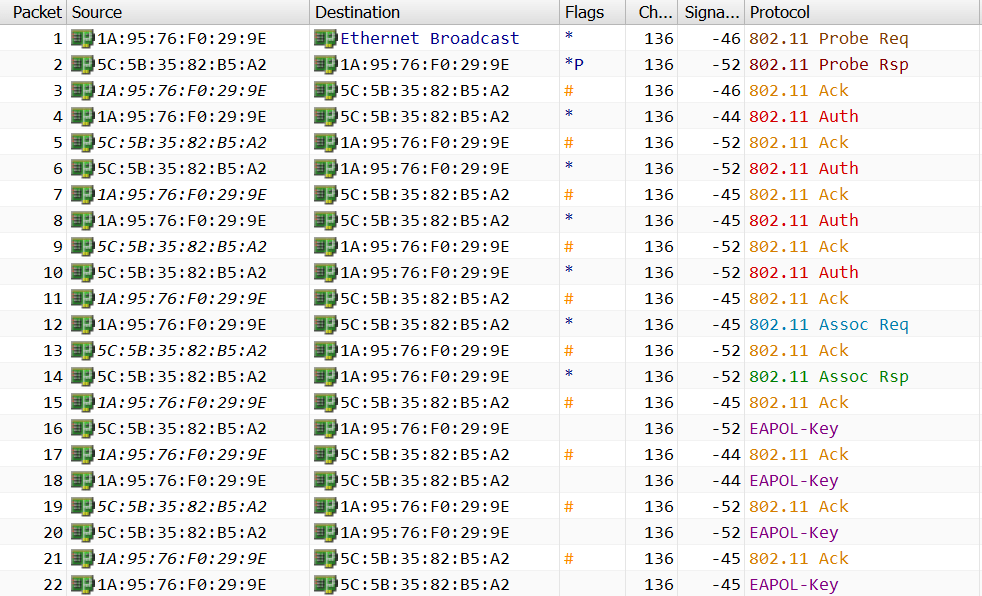
After the initial probe request and response, there are four frames exchanged in SAE in place of two frames in case WPA2-PSK which uses open system authentication. This four frame exchange is embodied by the principles of public key cryptography and Elliptic Curve Diffie Hellman (ECDH) Groups. The first two frames are commit messages and the last two are confirm messages. Below is a snippet of authentication element from a commit message.

Frame 1: Commit message 1

The authentication element of the frame has 6 fields. The first field indicates the type of authentication algorithm which in this case is SAE followed by a sequence number and status code. The next field, Group ID plays a critical role in the SAE process. This ID refers to a set of parameters defined by IANA that will help both client device and access point determine the point on an elliptic curve without having to exchange the password and other details over an insecure channel. Group ID 19 uses ECP that defines the math behind mapping the PSK to a point P on an elliptic curve (EC) and mandates the use of 256 bit keys for high security. ECP provides higher security with less compute than other DH groups with MODP which uses modulus functions to determine P. Diffie Hellman exchange only works when both parties can agree to a common variable, in this case a point on an elliptic curve. The next field elements are scalar and finite field element. Scalar is randomly chosen by the device and finite field element (FFE) is a result of calculation with P determined by using ECP.

The second commit frame is from the access point to the client device that contains the same elements with a scalar and FFE of its own.

Frame 2: Commit message 2

The third frame in the sequence is the confirm message from client device to the access point.

Frame 3: Confirm message 1

The fourth frame is the confirm message from access point to client device.

Frame 4: Confirm message 2

Each device uses the scalar and FFE received from the other device to calculate the shared secret that is the seeding material for PMK calculation and send these confirm messages. It is important to note that the confirm field value in frames 3 and 4 is different because the order of values hashed by client and AP is different. However, each device can calculate the hash of other device to confirm they are using the same key. The entire SAE exchange that calculates the shared secret and confirms is also called dragon fly key exchange. If you are interested in specific math details of the exchange they can be found here . After the SAE exchange, the devices proceed with association process followed by the 4 way handshake. The following summarizes SAE frame exchange process.

Client             --Commit-->           Access Point
Client             <--Commit--           Access Point
Client             --Confirm-->          Access Point
Client             <--Confirm--          Access Point

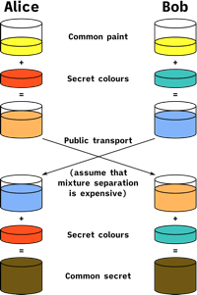
Comparing this with the DH paint analogy makes it easier to understand better.

Public Key Cryptography Demonstration

Alice and Bob agree on using group ID that is defined by IANA to determine P on a curve which can be treated as common paint. They exchange scalar and FFE over public transport which can be treated as part of public key. It is not possible to determine private keys/secret colors from these values. They use this information to calculate the common secret and in turn PMK that is used to derive session keys using the 4 way hand shake. Because the secrets are device and session specific, even if the password is compromised, the attacker cannot decrypt the traffic of other users.

References:

  1. https://mrncciew.com/2019/11/29/wpa3-sae-mode/
  2. Presentation by Hemant Chaskar at WLPC 2019 https://www.youtube.com/watch?v=fCsR8aK4mqE
  3. https://sarwiki.informatik.hu-berlin.de/WPA3_Dragonfly_Handshake
  4. Packet Capture

Wi-Fi Feasibility for your IoT Application

Today, every enterprise has Wi-Fi infrastructure in place to enable connectivity and mobility in the environment. It is safe to say Wi-Fi is ubiquitous and is the primary mode of connectivity for mobile phones, laptops, and a multitude of other things. But is using Wi-Fi for connecting all things a good solution? It certainly helps the consumers/end users to have a single connectivity solution to use and manage. But if you are product developer or someone involved in decision making of a connectivity solution for your Internet of Things (IoT) application this might be helpful. In this blog post, I dive into some of things that need to be considered to evaluate the suitability of Wi-Fi for different applications. For this blog purposes, any object that needs network connectivity is treated to be part of IoT. It can be a laptop that has great compute resources or a sensor that merely detects temperature and transmits it. The following factors will help in determining how effective it would be to use Wi-Fi for connectivity.

Scale

When it comes to IoT, scalability is a key requirement that drives much of the technology conversations. How many devices does your application require? We can talk a lot about the theoretical number of simultaneous connections an 802.11a/b/g/n/ac access point (AP) can support but in reality, the number of devices that can have reliable connection simultaneously depends on the throughput requirements which we will be discussed later. A few motion detector sensors, temperature sensors, security cameras and other smart home devices work great on home Wi-Fi but when you scale the numbers into hundreds and thousands in a smart enterprise environment, Wi-Fi may not scale well enough to meet the requirements. As a rule of thumb, you can expect a typical 802.11a/b/n/ac access point to serve tens of client devices with individual throughput requirements of less than 1 Mbps. But capacity analysis and determining how many reliable connections an access point can provide is a much more complicated discussion. Advanced algorithms might have to be implemented to make the client devices turn on/off their radios when necessary so that the number of simultaneous connections at any time is within the Wi-Fi limits. However, things change when you consider 802.11ah (Halow) standard. This Wi-Fi technology operates in sub 1 GHz band and was developed specifically for internet of things to be able to support large number of devices with low throughput requirements. Theoretically each Halow access point can support 8,191 client devices but I haven’t seen products in the market that support more than 250 connections. While this technology has promising features, there are not a lot of products in the market today.

Support for IPv4/IPv6

Devices need to support IPv4/IPv6 to be able to communicate over Wi-Fi. Supporting these protocols might require the client devices to have more compute than they would typically need to perform their intended tasks. Adding support for IP can add more overhead than the actual data making the system inefficient. Support for IP on devices like mobile phones and laptops is a necessity without which they can’t transfer the large amounts of data they are typically designed for. But adding IP support to a motion sensor detector can result in more overhead and less data. The overhead only increases with scale and is a good trade off to having a different connectivity solution to manage. One other thing to consider is IPv4 may not be sufficient at scale and could require IPv6. IPv4 is supported by all enterprises but IPv6 is still in adoption phase. So the support might have to be considered on both client device as well as the consumer networks.

Power

802.11 capable devices tend to have less battery life when compared to 802.15.4 based devices that support protocols like LoRa, ZigBee etc. If client devices can be recharged frequently and has support to continue to operate while charging, using them on Wi-Fi can be great but a lot of connected objects like temperature sensors operate on coin cell batteries. Using the low powered devices that are expected to have longer life (months or years) on Wi-Fi may not be an ideal solution. These devices operate more efficiently on 802.15.4 based protocols.

Throughput

One of the best attributes of Wi-Fi is the throughput capabilities it can offer. This is especially true when compared with other wireless protocols like Bluetooth, ZigBee and LoRa. Wi-Fi offers better throughput at an individual client device level as well as an aggregate level although both the values fall with increased number of connections per AP. Throughput requirements must be evaluated along with scale factor because both are interdependent. Thousands of RFID tags might require few Kbps per tag and an aggregate of few Mbps of throughput but a single inventory management robot that requires higher throughout to continuously scans and transmit data is a better client device to be connected on Wi-Fi.

To be able to determine if Wi-Fi is the right connectivity solution for an IoT application a combination of all these factors also need to be considered. More throughput means more resource utilization which translates to more power consumption which makes the need to have client device be recharged frequently more critical. On the other hand, if the throughput requirements are low, adding an IP support can add enough overhead at scale making the solution impractical. 802.15.4 based connectivity solutions might make more sense in those use cases. There could be a hundred other reasons to choose or not choose Wi-Fi for an IoT application but these four factors are foundational to determining the suitability of the solution.

A good Wi-Fi design is about getting four things right..!!

Becoming a good Wi-Fi design professional requires extensive knowledge in different aspects of networking and also some areas of project management. The 400+ pages of CWDP book from CWNP teaches you exactly that. From requirement gathering & analysis to post implementation validation, the CWDP curriculum is designed to make you a well rounded design professional. But are there nuggets to achieving good Wi-Fi design? In this blog post, I explain why nailing four fundamentals is the key to achieving this.

Choice of Access Points

Selecting the right access point drives the entire design process. This sounds a lot easier than done. So how can we get the first step of the process right. Access points are typically two types, the ones with internal omnidirectional antenna and the others with connections to external antenna. Choosing between the two types needs a thorough requirement analysis. Is the goal to provide coverage or capacity? The main intent of coverage design is to be able provide good signal without taking into consideration of how many clients connect. Coverage design works well for guest only or other networks where the WiFi performance is not critical. Access points with internal omnidirectional antennae are a great fit for this purpose. But WiFi performance is more critical in today’s world than ever. That is where capacity design comes into play. Capacity planning requires an understanding of the number of clients expected to be on the network, the applications that will be used and the throughput SLA requirements per user or device based on these applications. Ideally it should also contain room for growth in number of devices in the future. Capacity planner from Andrew is great resource to determine how many access points are needed to meet the capacity requirements. The type of access point for capacity design really depends on the number of required access points and the layout. High density spaces like auditorium, large conference rooms, lecture halls etc, where the number of client devices is high per square foot, using access points with directional external antennae will be highly beneficial. Office spaces with well spaced desks layout can work with APs with omnidirectional antennae. But as the scale increases (devices, additional floors), use of directional antennae may be required for creating smaller coverage cells. I have a blog post that explains the need for these antennae in modern enterprises. This should help in choosing the correct type of access point for your deployment.

Location of Access Points

Once the required types of access points are determined for the deployment, the next step would be determine the ideal placement of these access points on the floor plan. This can be done in a couple of ways. One design survey method is the AP on a stick method. This process involves placing AP in the actual environment, taking the readings from a site survey software and determining the correct placement for optimal signal. The clear to send blog has very good content on how to perform this type of surveys. It is important to note that this is not a scalable way of determining the AP locations. The second method called predictive design is a scalable solution. This requires use of site survey software like Ekahau Pro or iBWave Wi-Fi to identify the ideal AP placements. Most predictive site survey software comes with default attenuation values for walls and other obstacles in the environment. It is recommended to do a combination of both survey methodologies to make the design more accurate. AP on a stick method can be performed in parts of the environment to determine the attenuation values of different obstacles and input these into the site survey software to improve accuracy in the predictive models. As a rule of thumb, never place APs in the hallways and always try to leverage the walls to reduce cell size especially when omnidirectional antennae are in use. The AP placement should not solely depend on the coverage but also client density for capacity designs. High density spaces will require more number of access points in closer proximity than other areas. Designs that involve placing APs every ‘x’ feet might miss some obstacles that prevent signal penetration. Shotgun implementations like adding APs where people need it can result in over engineering and these are only few of the many reasons why determining ideal AP placements is the second fundamental one needs to get right to achieve required performance.

Channel Planning

With continuous improvements to the proprietary Radio Resource Management (RRM) protocols, many vendors today recommend using auto channel settings in any environment. This may not necessarily result in optimal performance. Coming up with a good channel plan that would reduce adjacent and co-channel interference is an important step in achieving better results. 20 MHz channels are widely recommended in enterprise environment. But each case is unique and needs to be evaluated accordingly. Perhaps, there is an area in the environment with clients performing file transfers frequently and can benefit from 40 MHz channels in the area. The environment might be closer to an airport that results in frequent channel switching when using default RRM settings. Such environments could benefit from disabling some of the DFS channels. 2.4 GHz range is better than 5 GHz considerably. So some 2.4 GHz radio might have to be turned off to reduce interference. Even on 5 GHZ channels, channel 36 will have better range than channel 165 although the difference is not too considerable. Some clients may not have support for all channels. All these factors need to be taken into account in the design phase to be able to deliver more predictable performance. Static channel assignment yields best results but performance when using RRM and device profiles with appropriate settings do not fall far off as well. More than anything, using RRM vs static channel assignment is a question of scalability. In any case, coming up with a channel plan manually or using auto channel assignment options on the predictive survey tools will give better insights into what the actual coverage and channel overlap is going to be post deployment.

Transmit Power Setting

One of the frequently overlooked setting is the transmit power on the access point radios. Using default RRM settings can be quite catastrophic in some cases. Especially when access points are transmitting at high power, the network can face multiple issues in the form of interference, asymmetric uplink/downlink connections, hidden node issues etc. Customizing Tx level in the RRM settings can yield best results without having the need to set static power levels on all access points. The ideal maximum Tx power at which APs transmit should be equal to the transmit power of least capable most important device in the environment and the minimum Tx power should be equal to the power at which all APs can provide required minimum coverage. Predictive site survey tools give you the ability to simulate coverage at different power levels and this will help in determining these values that need to be configured on RRM to make best use of it.

There a ton of other requirements for successful planning, implementation and validation of a good WiFi network but the design is always at the core of it. It is the foundation on which the entire process is built on and getting these four fundamentals right is the key to an optimal design.

A Checklist of Expenses for your WiFi project

Looking to install new WiFi infrastructure or upgrade your current system? Wondering what costs are involved for your project? Here is something that might help. Having worked on multiple WiFi projects ranging from tens of access points (APs) to thousands of access points, I thought it might be a good idea to have a checklist of costs involved in these projects. To keep things simple, costs can be categorized into one of 1. Materials and 2. Time.

Let’s take a look at the materials cost first. This will comprise of hardware, software and other miscellaneous expenses. At a basic level, this will include cost of access points and corresponding licenses. Depending on the choice of vendor solution, a controller (physical or virtual machine) or a subscription (for cloud solutions) will have to be purchased for network management. In general, licenses are sold for 1, 3 and 5 year terms. Latest WiFi products are not expected to be End of Life for 5 years from their release date but I have seen companies preferring a 3 year refresh cycle to be able to take advantage of the latest protocols. Depending on the appetite for future upgrades the licenses can be purchased accordingly. For some vendor solutions, a separate support contract might have to be purchased for troubleshooting help and RMA purposes. These contracts are available with different SLAs and can be chosen appropriately. The next material expense is cabling. If you already have wireless infrastructure in place, additional cabling might be required for APs that may have to be added or existing cabling might need an upgrade to Cat 6 cables. Another expense is the need for switching infrastructure. If you already have POE+ capable switches with enough available ports and power budgets on each one, this may not be required. Additional racks might be required to accommodate the new switches. Most access points today require POE+ but there are also some that can fully operate with POE. If buying new switches with these capabilities is not an option, an alternative is to use POE/POE+ injectors. Assessing the existing environment is critical in determining the cabling and switching costs. If the environment primarily consists of a typical grid style drop ceiling , in most cases the mounts included in the access point package should work. Other wise, additional mounting hardware might have to be purchased. If the environment has areas with high density of users, wireless engineer could recommend using access points with external (directional) antennae. It is worth keeping the mounting hardware for these antennae in the checklist as well. Additionally conduits and electrical boxes might be required for mounting access points for certain ceiling types. NEMA enclosures might be required to protect the access point for outdoor installations . If there is no in-house engineering/cabling/project management resources, consultants might have to be hired. So it is important to keep in mind the travel costs that may include flights, rental cars, hotel and food expenses for these consultants. With hiring consulting companies, a maintenance contract might also have to purchased with them for ongoing support post implementation. To summarize, here is a checklist of material expenses involved in a WiFi project:

  1. Access Points
  2. Controllers
  3. Licenses
  4. Vendor Support contracts
  5. Cables
  6. Switches
  7. Racking for switches
  8. POE/POE+ injectors
  9. Antennae
  10. Mounting Equipment for Access Points & Antennae
  11. Conduits
  12. Electrical boxes
  13. NEMA enclosures
  14. Consultant travel related expenses
  15. Consultancy maintenance agreement

Moving on to the time costs. This category will primarily include expenses on engineering & project management along cable technicians. Provided the project involves more than a couple of access points, it will need a minimum of a wireless engineer and a cable technician. If you do not have an IT team with resources capable of performing wireless design, implementation and validation, it is recommended to hire consultants to do these tasks. Each of these steps is critical to providing better performance. A network engineer might be required to configure the switching and routing aspects of the network but, in a lot of cases a wireless engineer will have the skills to do these tasks. Cable technicians need to be hired for cabling and installers for access point installation. Resources for cabling usually can also install the access points. If there is a business requirement to provide outdoor coverage, a certified electrician might have to be hired to drill on the external walls. A lot of small scale projects (< 50 APs) wouldn’t need a dedicated project manager but the larger the project gets the higher the benefits of having project management resources. A systems engineer may also be required for installing/configuring servers for services such RADIUS, Active Directory, LDAP etc if they don’t already exist in the environment. To summarize the time costs, here is a check list:

  1. Wireless Engineer
  2. Network Engineer
  3. Cabling Technician
  4. Access Point Installer
  5. Project Manager
  6. Systems Engineer

The estimates for the costs vary depending on a lot of factors including but not limited to choice of vendor, scale of the project, reseller discounts etc. The goal of this blog post was to provide a checklist of expenses rather than an estimate of expenses and I hope it can be of good help for your project.

Autocad LT for Wi-Fi Engineers – Managing Layers

Are you a Wi-Fi engineer who received a CAD file to perform design on Ekahau but couldn’t because of the sheer number of layers slowing down the software or making it hard to understand the floor plan after importing? You are not alone. If Wi-Fi designing is part of your job description, this is something you often come across and a lot of the times, a CAD engineer is not easy to find to assist with cleaning the file. I faced similar situations and decided to identify a good software that can help me do the clean up. I evaluated a number of free open source as well as proprietary software and identified Autocad LT as a great fit for Wi-Fi design engineers. LT version of Autocad is supported on both mac and windows with retail price of $420 compared to $1690 for the full version which offers much more capabilities and features but are not necessarily useful for Wi-Fi designing. In this blog post, I will be describing how to manage layers to clean up the floor plans and best optimize for AP placements using Autocad LT for Mac.

Autocad LT provides multiple shortcuts for each operation. Once you open the CAD file using file -> open or cmd + O, using cmd + 4 shows the layers tool on the right which can be popped out into new window by clicking on the top right corner of the tab.

Displaying Layers Tab with CMD + 4

Clicking on any object on the floor plan shows the layer to which it belongs. Some layers are hard to read due to the choice of color. It can be changed simply from the layer property as shown in the video below.

Change Color of a Layer

If your file has tens of layers, an efficient way to browse the list is using the search window at the bottom.

Using Search Tool to Browse Layers

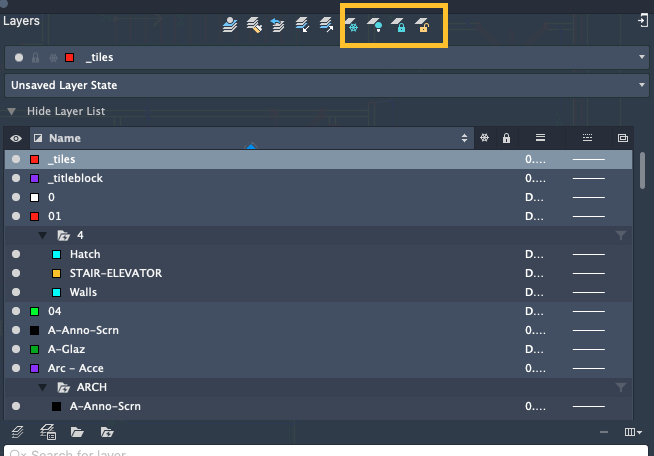
Once you identify the layer you would like to modify, you can select it and perform different operational tools. We focus primarily on four layer tools (highlighted from left to right)

  1. Freeze
  2. Turn off
  3. Lock
  4. Unlock
Layer Tools

You can perform them one layer at a time or on multiple layers by selecting them using cmd + click. The first two operations freeze and turn off can be used to disable or hide layers on the floor plan. Visually both these operations give the same result. But it is important to note one key difference. Turning off a layer will disable it for the current instance and re-appears whenever the file is reopened. On the other hand, freezing a layer will result in Autocad releasing it from memory. The layer will still be available to be thawed (unfreeze) at a later point if required. A frozen layer will not be shown on the map while importing on Ekahau whereas a layer that is turned off will be visible. Another layer tool available is lock. Locking a layer will prevent users from making any changes to that particular layer where unlocking will enable editing. Ekahau site survey sometimes have difficulty reading locked layers. So it is recommended to have all required layers unlocked.

These operations can be performed in a couple of ways.

  • Select the operation highlighted in the above picture and next click on any object of the layer you want to apply to.
Using Layer Tools – Option 1

or

  • Select the layer in the list and perform the operation using the tools in the same row with a simple click. The freeze and lock are intuitive on UI but turn off is shown under “visibility” (eye icon) of the layer properties window.
Using Layer Tools – Option 2

Please note freeze operation cannot be performed on currently active layer meaning the layer you are currently working on. To perform this you need to make some other layer as active. In the video shown below, I tried freeze layer “01” but it was active.

Changing Active Layer

Freezing all unnecessary layers will make the floor plan look more legible and easier to create AP placement maps on Ekahau.

Mentioning about an Ekahau Pro caveat I noticed seems to be a good way to finish this blog post. During one of the design exercises, I noticed the software was not reading some layers while importing. Opening a case with Ekahau revealed that the software does not detect layers without a Poly-object, poly-gon, poly-line or poly-circle. Ekahau support mentioned these are the basis for which the Wall Outlining Wizard allows you to configure as a wall (such as drywall or brick wall). So if you notice the same issue when some layers are not detected it is possible due to missing poly object. The workaround would be identify the layer, make it active and add a poly line from the draw tool on the left tool bar. This is demonstrated in the video below. In this video, it was assumed that the title block layer was not being detected on Ekahau because it was text only layer.

Drawing a Poly Line

Reference:

CAD file from https://www.cadblocksfree.com/en/4bhk-design-second-floor-plan-.dwg.html

Keys to Understanding WPA3 – SAE : Diffie-Hellman Key Exchange, Elliptic Curve Cryptography and Dragonfly Key Exchange

WPA3 certification is introduced by Wi-Fi Alliance in 2018 as a successor to WPA2. It aims to alleviate the vulnerabilities in WPA2 and provide more secure wireless networks.  It introduces new concepts like Simultaneous Authentication of Equals (SAE), dragonfly key exchange, NIST elliptical curve cryptography etc. To make it easier to understand WPA3 as a whole, I will be discussing each component individually in detail. WPA3 replaces Pre-Shared Key with Simultaneous Authentication of Equals (SAE) to derive the Pairwise Master Key (PMK) which enables secure communication even when the password is compromised. To understand how this is achieved, we need to understand how Diffie-Hellman key exchange and elliptical curve cryptography work in conjunction with Dragon fly key exchange.

Diffie-Hellman Key Exchange establishes session key between two entities without actually having to exchange any key information over a public insecure channel. Let’s get into the security terms of Alice and Bob being the two entities. Alice and Bob agree on two numbers g and p where p is a prime number. Alice chooses her private key to be a and Bob chooses b.

Alice calculates gamod p and sends it to Bob. Bob calculates gbmod p and sends it to Alice. This exchange happens over an insecure channel. Alice and Bob will perform the same multiplicative operation with modulo p against the values received.

Alice             <--agree on g and p-->           Bob
gamod p            <----Exchange---->           gbmod p
(gbmod p)amod p      --Derive key--     (gamod p)bmod p

For example, consider a=4 b=3 p=23 and g=5.

Alice             <--agree on g=5 and p=23-->   Bob
gamod p = 4          <----Exchange---->      gbmod p = 10
(gbmod p)amod p = 18   --Derive key--   (gamod p)bmod p = 18

The strength of the algorithm lies in the fact that (gbmod p)amod p is same as gbamod p and with large values of a,b and p it will be computationally close to impossible to obtain gbamod p without knowing the private keys a and b. This is an example of a trapdoor function which is nothing but a one-way function that states for a given x it is easy to calculate y = f(x) but very difficult to find x = f-1(y).  The basic concept of DH Exchange cannot be explained better without the paint analogy.

In this analogy g and p are common paint, a and b are secret colors and gabmod p is the common secret derived. This was one of the earliest implementations of Diffie Hellman algorithm. CWSP-206 study guide explains the same concept with different trapdoor function.

Here George and Billy agree on using 3 and 5 as their commonly agreed numbers and the operation they use is raised to the power.

George (35=243)           ------------         Billy (35=243)
secret 4, 2434           <------------>        secret 7,  2437
(2434)7                   ------------         (2437)4

Now that we have a good idea of what DH key exchange means, let’s take a look at Elliptic Curve Cryptography (ECC).

Elliptic curves like the one shown in the picture are set of points bound by the equation y2 = x3 + ax +b. Different curves use variations of this equation. To derive PMK, WPA2 uses a well-known hash function on the password whereas in WPA3, the password is indexed onto a point on the curve which is then used as generator to hash and derive the PMK. Hashing a password directly can be susceptible to dictionary attack. But it becomes very difficult doing it on generator points on an elliptic curve because change in a single character in the password can lead to a different generator point; hashing of which can result in a totally different PMK.

WPA3 also makes it impossible to derive PMK of individual sessions even when the password is compromised. Knowing the password can help the hacker identify the generator point on elliptic curve but due to the integration of Diffie-Hellman with ECC into Dragonfly key exchange makes it impossible to derive individual session PMK. The trap door function in this case could be scalar multiplication. According to discrete logarithmic problem, for two points Q and P on the elliptic curve where Q = n.P (n times P), it is impossible to determine ‘n’ based on only Q and P.

Let’s take a deeper dive into Dragonfly Key Exchange

The client device and access point in this diagram are both configured with a password for authentication. Client device chooses a secret A and access point chooses secret B. At this point let’s assume the password is already compromised and the hacker knows the generator point for PMK. Client hashes the secret A with generator point and transmits DH Hash A. Access point does similar process with secret B to create DH Hash B and transmits it to client. Having received DH Hash B, client hashes it with secret A to derive the PMK and access point hashes its secret B to derive the same PMK following the DH exchange as described earlier. Without knowing secret A and secret B, the hacker will not be able to derive PMK just from the password.

I hope this helped in understanding the WPA3 – SAE fundamentals. If you are interested in learning more I recommend the video playlist from Mojo networks on youtube which provides a simplified yet informative explanation on WPA3 concepts. I will be writing another blog post on frame exchanges during WPA3 – SAE authentication in the future.

References:

  1. CWSP-206 Study and Reference Guide from Certitrek
  2. Wikipedia
  3. Youtube playlist on WPA3 Enhancements by Mojo Networks